Using Expiring File Download Links to Control File Access
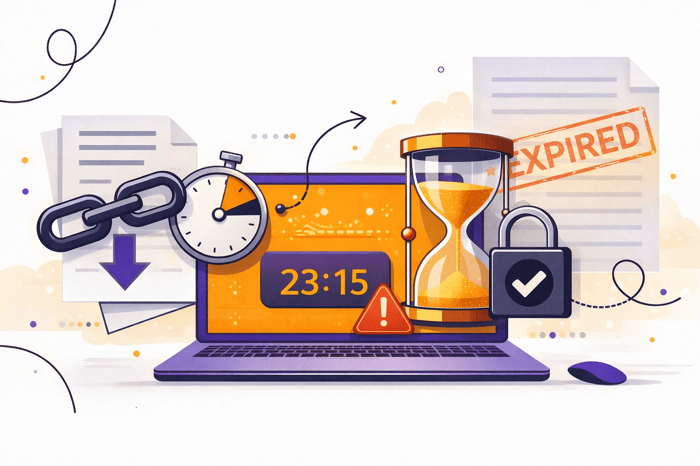
Sharing files is easy. Controlling what happens after you share them is the real challenge. Once a file leaves your system, it can be forwarded, stored, or accessed long after it is needed. This is exactly why expiring links have become a critical tool for modern file sharing. By setting time limits on access, businesses can regain control, reduce risk, and keep sensitive information from lingering in the wrong places. When implemented correctly, file download links with expiration give you flexibility without sacrificing security.
This guide explains how expiring links work, why they matter, and how to use them effectively to control file access across teams, clients, and external partners.
What are expiring file download links?
Expiring links are shareable URLs that automatically stop working after a defined period of time. Once the expiration condition is met, whether based on time, number of downloads, or manual revocation, the link no longer provides access to the file.
For example – any time you send a file with dropsend.com it create an expiring download link.
Unlike traditional attachments or static links, expiring file download links are designed for temporary access. They allow you to share files confidently, knowing that access will not remain open indefinitely.
Most secure file-sharing platforms allow you to:
-
Set an expiration time or date
-
Revoke access instantly
-
Track when a file is accessed
-
Combine expiration with passwords or verification
This approach shifts file sharing from “send and hope” to “share and control.”
Why expiring links are better than email attachments
Email attachments create permanent copies the moment they are delivered. Once attached, you lose visibility and control. The file can be forwarded, downloaded multiple times, or stored in inboxes for years.
Expiring file download links solve this problem by keeping the file centralized. The recipient accesses the file through a controlled link instead of receiving a copy outright. If the link expires, access ends automatically.
Key advantages include:
-
Reduced exposure from forwarded emails
-
No outdated files living in inboxes
-
Easier compliance with data-handling policies
-
The ability to revoke access at any time
For sensitive or time-bound information, attachments simply do not offer the same level of protection.
How expiring links help control file access
Expiring links are about more than convenience. They directly support better access control by limiting when and how files can be opened.
Time-based access
By setting an expiration window, you ensure files are only available when needed. This is especially useful for contracts, approvals, or temporary collaboration.
Reduced long-term risk
Many data leaks happen months after sharing, not immediately. Expiring file download links automatically close that risk window without requiring manual cleanup.
Cleaner offboarding
When a project ends or a contractor rolls off, you do not need to remember every file you shared. Expiration ensures access ends by default.
Better visibility
Most secure file-sharing tools log access events, giving you insight into when and how files are downloaded.
Common use cases for expiring file download links
Expiring links are useful anytime access should be temporary. Some of the most common scenarios include:
Client file sharing
Share proposals, creative assets, or deliverables with clients using file download links that expire after a few days. If access is still needed, you can issue a new link.
Legal and financial documents
Contracts, tax files, and internal reports should never remain accessible indefinitely. Expiring links help reduce exposure while maintaining ease of access.
Vendor and contractor access
Vendors often need files for a limited time. Expiration removes the need for follow-up access removal.
Large file transfers
Instead of sending oversized attachments, expiring links allow fast, secure delivery without clogging inboxes.
Choosing the right expiration window
The best expiration window balances security and usability. A good rule is to choose the shortest time frame that still allows the recipient to complete their task.
Typical guidelines:
-
Hours: One-time access, urgent transfers
-
24 hours: Quick reviews or approvals
-
3–7 days: Active collaboration
-
14–30 days: Longer client cycles with delays
If you would not want the file accessible months from now, it should not have an open-ended link today.
Expiration vs revocation: why both matter
Expiration is automatic. Revocation is intentional. Strong file-sharing workflows use both.
You should revoke file download links immediately if:
-
The wrong file was shared
-
The recipient changes
-
A file is updated and old versions should not circulate
-
You suspect the link was forwarded
The ability to instantly disable access is one of the most important security features in modern file sharing.
Strengthening expiring links with additional controls
Expiration works best when paired with other safeguards. Consider adding:
Password protection
A password ensures that even if a link is forwarded, access is still restricted.
Recipient verification
Restrict access to specific email addresses for sensitive files.
Download limits
Limit the number of times a file can be downloaded to reduce unnecessary copying.
Access tracking
Logs and notifications provide accountability and support audits.
These features turn basic file download links into a controlled access system rather than a simple URL.
Common mistakes to avoid
Even secure tools can fail with poor habits. Watch out for these mistakes:
-
Setting expiration dates too far in the future
-
Reusing the same link for multiple recipients
-
Forgetting to revoke access when circumstances change
-
Assuming expiration prevents recipients from saving copies
Expiring links control access, not behavior. Clear policies and smart defaults still matter.
Best practices for secure file sharing
To standardize secure sharing across your team:
-
Use expiring file download links by default
-
Add passwords or verification for sensitive files
-
Set reasonable expiration windows
-
Enable access tracking
-
Revoke links when projects end or files change
These small habits dramatically reduce risk without slowing work down.
Why expiring links should be your default
File sharing does not have to mean losing control. Expiring links provide a simple, effective way to limit access, reduce long-term exposure, and keep sensitive information from lingering beyond its usefulness. For teams that regularly share large or important files, using file download links with expiration is one of the easiest security upgrades you can make.

