How to Email Large Files with DropSend
The phrase “email large files” might sound somewhat inaccurate especially because emails have attachment limits. Yet, emails have been used to send files for decades. Email service providers have evolved to the point where they almost function as your online pass. Many platforms now use email addresses for verification and to receive information globally.
But how do you email large files? Is it just a matter of attaching the file and hoping it reaches the recipient? In reality, email is an integral part of everyone’s life, especially in the increasing digitization. File-sharing platforms like DropSend use email to verify the recipient’s identity, ensuring secure and flexible use of cloud platforms.
Understanding Email Attachment Limits
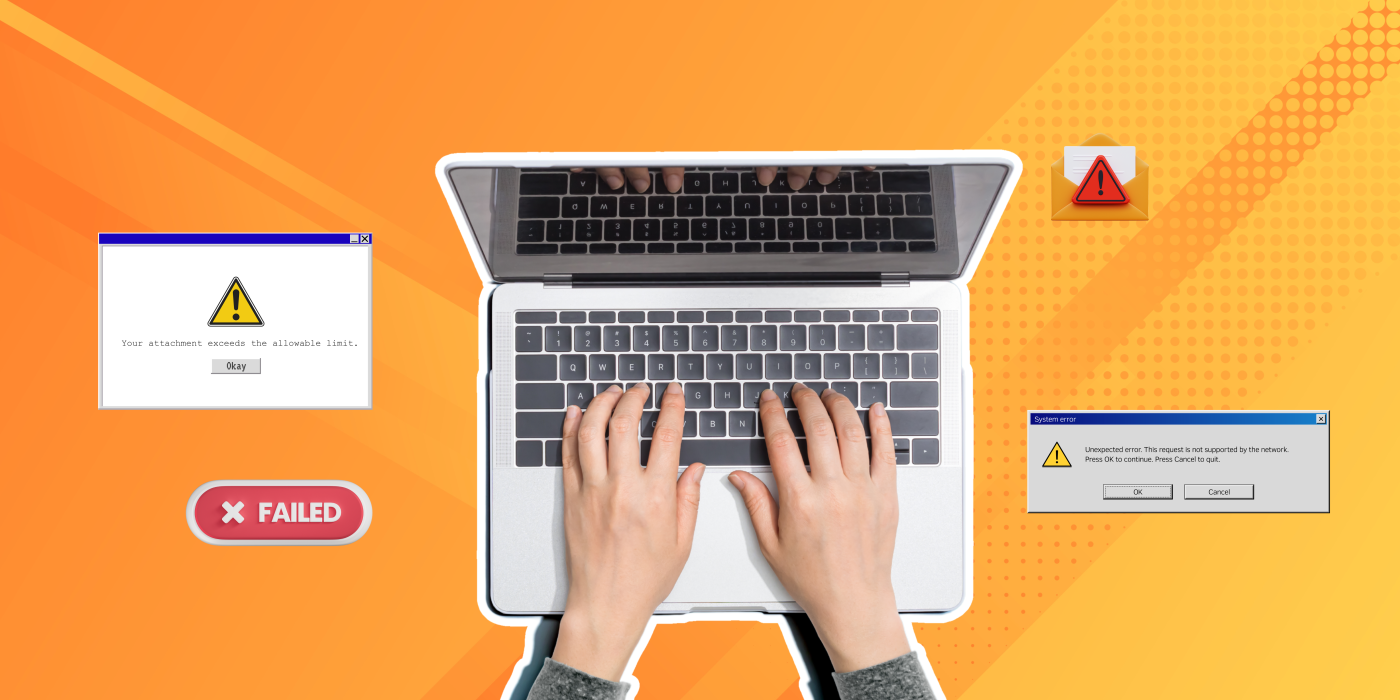
When it comes to emailing large files, attachment limits are always a consideration. Email service providers often set these limits to prevent server overload and ensure smooth delivery. Here are some common limits:
Gmail
Gmail, a widely used email service by Google only allows up to 25MB in size.
Outlook (formerly Hotmail)
Microsoft Outlook permits attachments of up to 20MB.
Apple Mail
The default email client for macOS and iOS devices allows attachments of up to 20MB for outgoing messages.
AOL Mail
AOL Mail sets its attachment limit to 25MB.
ProtonMail
ProtonMail is a service email service known for its zero-access encryption, which limits attachments to 25MB for paid users and 5MB for free users.
Zoho Mail
Zoho offers a maximum attachment size of 20MB.
Mozilla Thunderbird
Thunderbird does not have any strict attachment limits, however, the recipient’s email provider may impose restrictions. As a guideline, it is advisable to keep attachments below 25MB.
Exceeding these limits will result in undelivered emails. Hence, knowing how to bypass these constraints is essential.
How to Email Large Files with DropSend
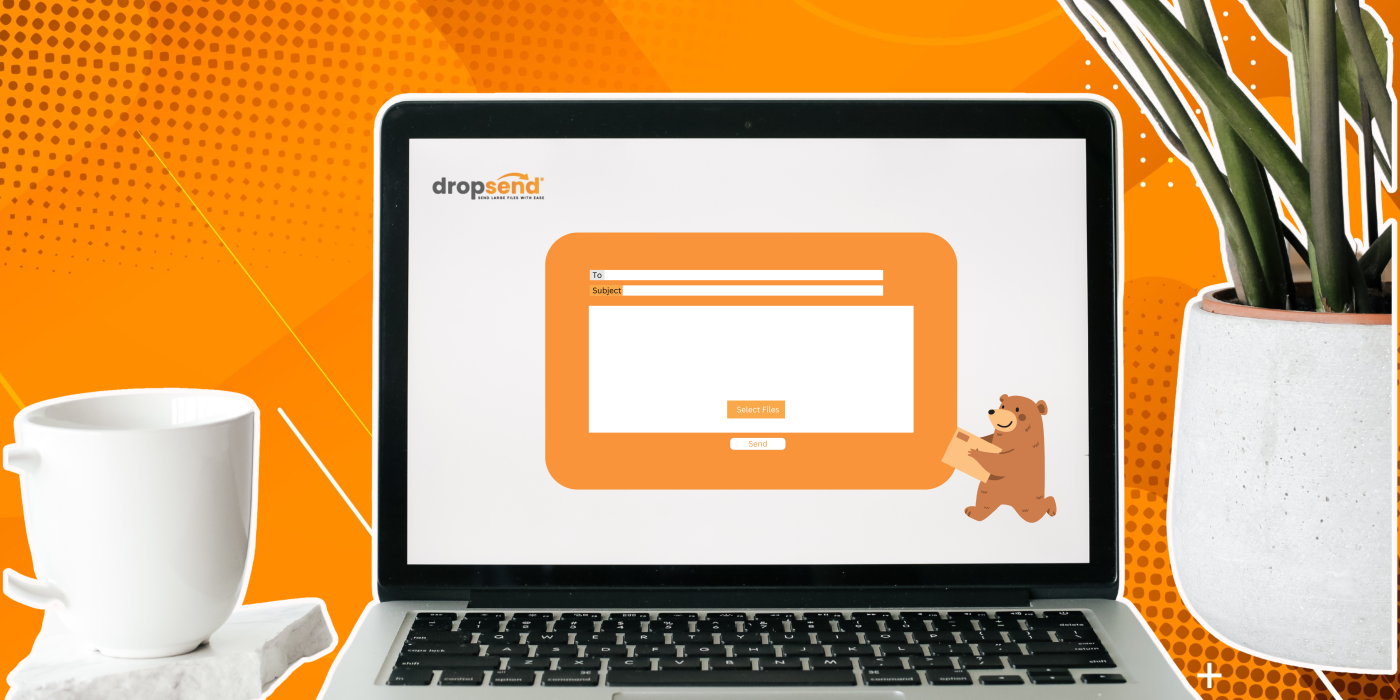
Cloud storage services like DropSend provide a practical solution for sending large files. With DropSend, you can upload the file to your account and send it to your recipient by entering their email address. The recipient will then receive an email with a downloadable link that allows them to download the file directly. Here’s how to do it.
-
Sign up for DropSend.
Visit dropsend.com and create a DropSend account. DropSend offers a free trial period, enabling you to send large files at no cost and explore the platform’s features.
-
Log in to DropSend.
Log in to your account. (If you are a Business Account user, make sure to log in using your team’s customized domain.)
-
Send your files.
Click on the “Send Files” option at the top corner of your screen and wait for the pop-up to attach files and add a recipient.
-
Attach your files and include a message for your recipient (optional).
Attach the file you wish and enter your recipient’s email address. You can also include a brief message or instructions for the attached file.
-
Set expiration dates, passwords, and download limits.
Although DropSend encrypts the file you send, it’s essential to add an extra layer of security. You can specify the number of days the download link remains active, set a password, and limit the number of downloads. Be sure to inform your recipient about the file, the password if applicable, and any other settings you have configured.
-
You are all set.
After you click send, your recipient should receive their file.
Best Practices When Sending Large Files Via Email

To ensure the successful delivery of your large files, follow these best practices when sending them.
-
Notify your recipient.
Inform your recipient before you email a large file to avoid confusion. Be sure to inform them about the type of file, any passwords, download limits, or link expiration details. This will help prevent unauthorized access as the recipient will be expecting the file and will be vigilant.
-
Test the link.
Ensure that the download links function correctly. This verification confirms that you have attached the correct files and allows you to address any errors in an incorrectly shared file. This also allows you to resend files, especially urgent files.
-
Follow Up
Confirm with your recipient that they have received the files. If they haven’t received the link, ask them to check their junk folder or adjust their email filters to prevent blocking or marking emails from the cloud platform as spam. Additionally, consider advising them to delete unimportant emails to ensure there is a space for the email with the download link.
-
Choose the Right Method.
Choose the best method that fits the file size and the recipient’s capabilities. Verify the type and version of their device, the available storage capacity, and their internet speed, as these factors will affect their ability to receive and download large files. Determine whether you need to compress the files or split them into smaller parts before sending them.
Why Emailed Files Are Not Being Received
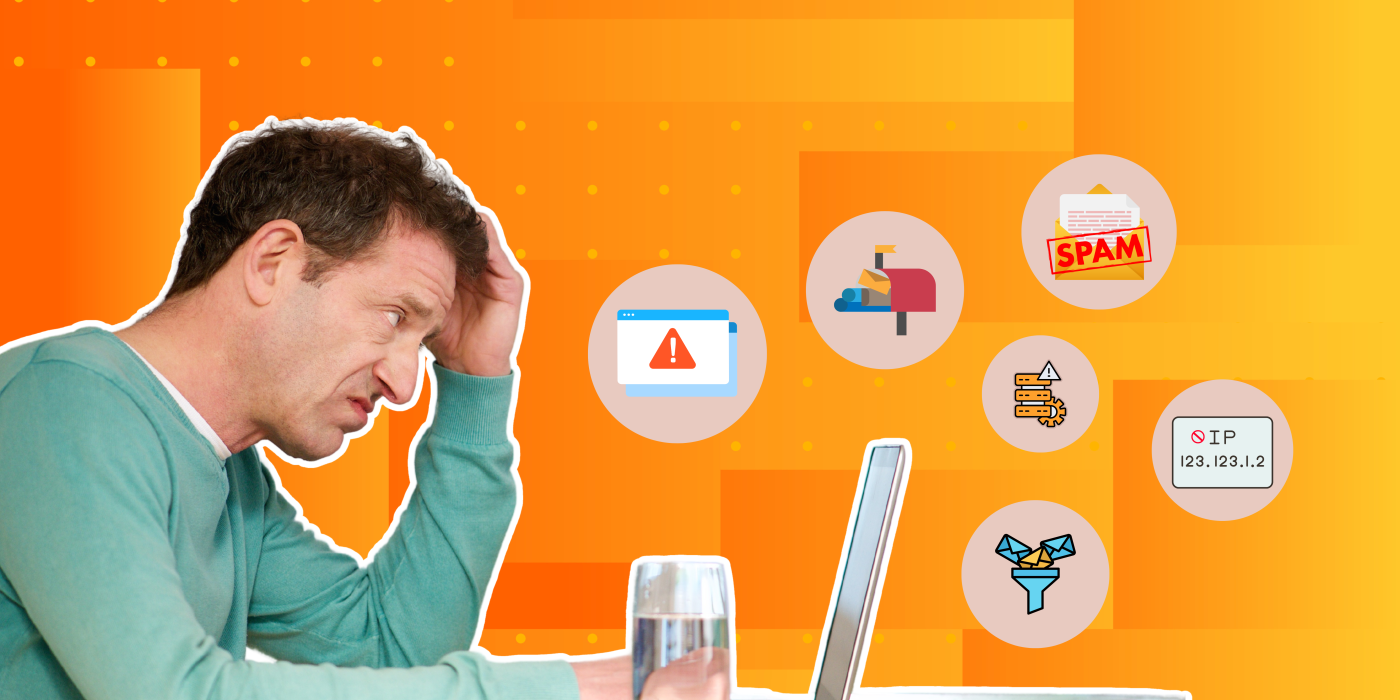
Failing to receive your files or emails can be frustrating. To help resolve these issues we’ve compiled a list of common reasons and solutions to ensure your email reaches the recipient’s inbox where it belongs.
Invalid Email Address
With auto-correct, we’re accustomed to having our typos fixed for us. However, if you make an error in the recipient’s email address, there’s no auto-correct to save you. This happens frequently, so always double-check the email address you have entered.
If you have already sent the file in a rush, you can check your DropSend sent box to verify the recipient’s email address.
Recipient’s Mailbox is Full
This is another simple fix, although it’s less common now with most email providers offering more storage space. However, you should still contact your recipient to ensure they receive the file.
If your recipient encounters this issue, advise them to provide an alternative email address or delete some emails to free up space in their mailbox.
Server Issues
These issues can arise from server maintenance, unexpected server downtime, or network disruptions. It is advisable to wait and retry sending the email after some time.
In the meantime, consider alternative methods for sending large files via email. For example, you could compress your files to reduce their size for attachments or provide a link to access the files without downloading them directly.
Email Rules and Filters
Users can set specific rules for incoming messages that automatically redirect, delete or block certain emails. If a recipient has strict rules in place this might inadvertently prevent the file from being delivered into the inbox.
Check with the recipient to see if they have blocked emails from a particular email address or server. Additionally, avoid using excessive symbols or capitalized text in your message.
Your Email is in the Spam Folder
Nearly half of the emails sent worldwide are spam, so email service providers have developed advanced spam filters to differentiate between legitimate and fraudulent emails. However, these filters aren’t always perfect and sometimes block genuine emails.
Always ask your recipient to check their junk folder and mark your email as safe to prevent this from happening in the future. Links, in particular, can often end up in the spam or junk folder.
IP Has Been Blocked
This is likely the most frustrating issue on the list. If your emails frequently fail to reach the recipient’s inbox, check if your IP address has been blacklisted. You can use a free tool like MXToolbox for this purpose.
If your IP address is blacklisted by the recipient’s mail server, you will need to determine the cause. Resolving this issue can take anywhere from a few hours to several days.
Email Large File with DropSend
DropSend is a secure file-sharing platformthat uses the cloud to store and share files. For flexible sending options, DropSend allows users to send files directly to non-users via email. This feature enables users to send large files without email attachment constraints, ensuring recipients can still receive substantial files securely.
DropSend also offers a request and email option allowing users to request large files by providing non-users with a link to upload the requested files. DropSend users can then store these files in their DropSend account.
DropSend is HIPAA compliant and employs 256-bit encryption to secure your files during transmission and storage. It also offers additional zero-knowledge security layers, allowing you to set security measures under your control.
Try DropSend for free and start sharing large files your way!

