Large File Sharing: How to Password Protect Any Files
Each file we share, especially in large file sharing carries a 50-50 probability of reaching unwanted recipients. This could happen by email forwarding, leaving a USB stick unattended on a desk, forgetting to log out, or even unauthorized users accessing your computer.
Despite all of these precautions and reminders in place, the scenarios mentioned above can still occur. To safeguard your files from unauthorized access, consider adding a layer of security, such as file password protection Password protection acts as a barrier between your data and potential intruders without causing significant inconvenience.
The approach you take will vary depending on the software you are utilizing to generate the file initially. Certain applications come equipped with built-in password protection features, while in other instances, you may have to secure files using an alternative method.
What is File Password Protection and Why is it Necessary?

File password protection is a security practice where a password is set to limit access. It serves as the first line of defense for storing confidential information in user accounts. However, for thorough cybersecurity coverage, passwords should be used with additional protective measures like firewalls and antivirus software.
Ensuring password security is essential for various reasons that have implications for both our personal and professional spheres. It serves as a fundamental element vital for safeguarding sensitive information and data, the compromise of which could have severe consequences if it falls into the wrong hands.
How to Password Protect When Sharing Large Files
Our first line of defense against unforeseen issues is prevention. In the context of transferring large files, opting for passwords is the key to averting the consequences of stolen files and data being used against us. Here are password protection methods to enhance the security of the information we share online.
Use Encryption
Before a big file transfer consider encryption tools or software to secure a file or folder. Encrypting a file is essentially converting a file’s content into secret code that only someone with the right key can decipher, meaning if an unauthorized individual tries to peek into your file, all they see is a jumble of characters that make no sense. Examples of encryption tools are VeraCrypt, Zip and Nord Locker,
Zip, or Archive with Password
Utilizing file compression tools such as WinZip or 7-Zip enables you to generate an archive of zip files that can be password-protected before transferring large files. This becomes particularly vital when handling sensitive information that you prefer to keep exclusive to your intended recipient. Essentially, these compression tools package your files for convenient portability while offering the choice to enhance security by adding a password for an extra layer of protection.
Built-in Software Feature
Depending on the software you use, it’s advisable to verify whether it includes a built-in feature for password protection. Platforms like Microsoft Office and PDF readers, for example, can set passwords before sharing files online. This proves particularly useful when sending susceptible files containing information like personal details, tax numbers, and card information.
Use a Secure File Sharing Service
When using cloud-based services for large file sharing, choose a platform that provides built-in security features, allowing you to set passwords. Many large file sharing services like DropSend, not only permit users to establish passwords but also enable them to share files exclusively with specific individuals. Additionally, they employ robust encryption protocols, eliminating the necessity for an extra encryption tool. These services further enhance security by allowing users to set file expirations and download limits, adding multiple layers of protection beyond just file passwords. This ensures that even if an unauthorized individual manages to guess a password, the files cannot be easily stolen.
Creating A Strong Password
The 2023 Verizon Data Breach Investigation Reporthighlights that a significant number of successful hacking attempts and data breaches stem from compromised or easily guessable passwords. According to the report, 81% of breaches linked to hacking involved either weak or stolen passwords. This underscores the significance of not just employing password protection, but also ensuring the use of robots and well-crafted passwords. In essence, password security plays a crucial role in safeguarding data and information through the implementation of secure authentication protocols, regular password changes, and the use of strong password combinations.
The strength of a password relies on factors such as its length, complexity, and uniqueness. To prevent passwords from being stolen or exploited, follow this guideline.
-
Aim for longer passwords. A good rule of thumb is to use at least 12 characters.
-
Combine uppercase and lowercase letters, numbers, and special characters. Complexity makes it harder for automated tools to guess your password.
-
Avoid using easily guessable, words, phrases, or common combinations.
-
Create passwords that are unique to each account and not easily predictable. Do not use personal information such as names, birthdays, or common words.
-
Consider using passphrases. Make sure it is something memorable but not easily guessable.
-
Stay away from sequential or repeated characters (eg. 123456 or aaaaaa).
-
Change passwords regularly
-
Consider using a reputable password manager. This can generate and store complex passwords so you do not have to remember them all.
How to Password Protect Any File with DropSend
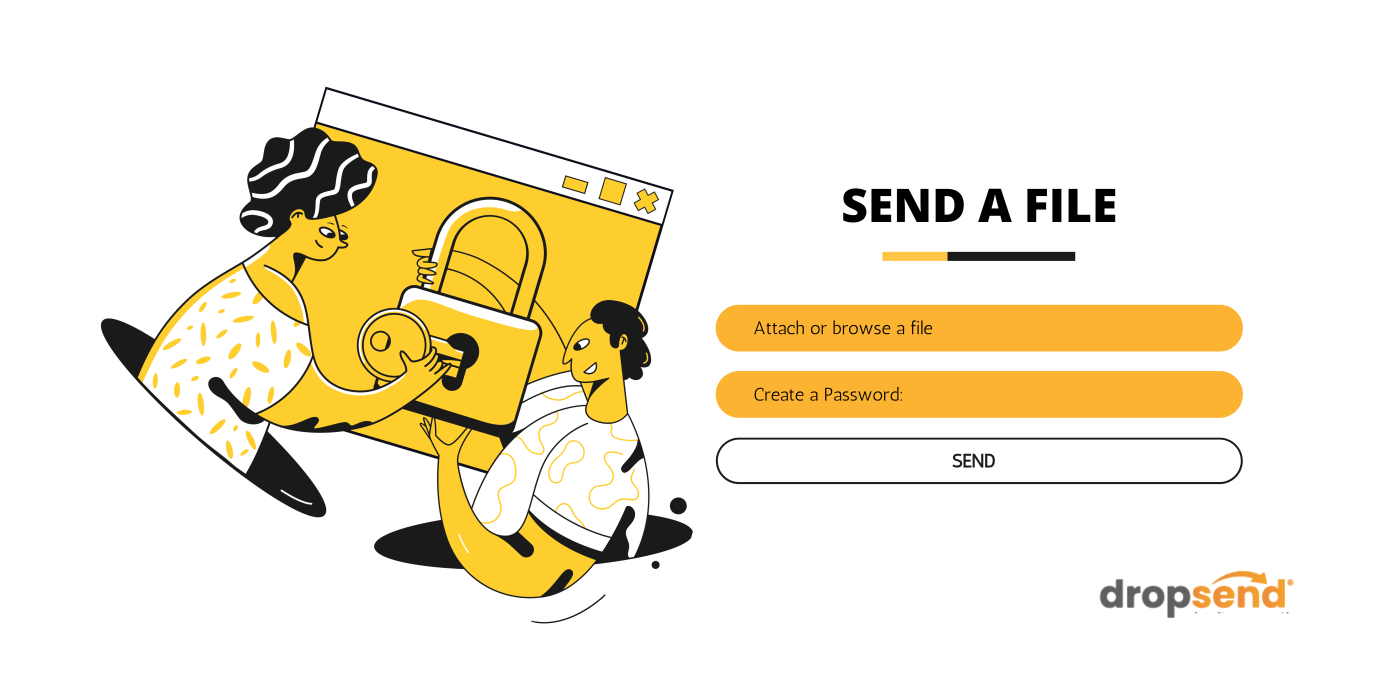
DropSend is among the many large file transfer services that offer an integrated password protection feature. It boosts security by incorporating additional measures such as link expiration, a strong 260-bit encryption protocol, and download limits.
The password protection feature is supported across Basic Standard, Professional, and Business plans. To set a password before sending a file, simply:
Basic, Standard, Professional, and Business support the password protection feature. To add a password, simply:
-
Log in to your DropSend account.
-
Click on “Send A File” and add the email address of your recipient. You may also add a subject.
-
Select “ Advanced Options”.
-
Assign a password in the designated box, and if desired, set download and time limits.
-
Attach files by dragging or using the browse option.
-
Include a personalized message for a more customized file-sending experience.
High-Priority Files that Need Password Protection
When sending large files, it’s crucial to identify the specific file types requiring constant password protection. This ensures that we enhance the security of files containing extremely sensitive information that could be utilized against us. While every file warrants security, the following are the highly sensitive ones that should be password protected, whether transmitted through large file-sending services or email.
Financial Documents
Files containing financial records, tax documents, and banking statements.
Personal Identification Information (PII
Files containing personal data such as social security numbers, addresses, and birthdates.
Medical Records
Documents containing sensitive health information and medical records.
Legal Documents
Confidential legal files, contracts, and agreements.
Corporate Reports and Strategies
Strategic business plans, financial forecasts, and confidential reports.
Intellectual Property
Files related to intellectual property, patents, and propriety information.
Employee Records
Human resources files containing employee details, payroll information, and evaluations.
Research Data
Academic or scientific research data that requires protection.
Trade Secrets
Files containing proprietary business information and trade secrets.
Personal Photos and Vudeos
Private multimedia files that should only be accessed by authorized individuals.
Encryption Keys and Password Lists
Files containing critical information like encryption keys of password lists.
Government or Classified Documents
Files related to government work or classified information.
Projects Proposals
Confidential project proposals and business strategies.
Client Information
Customer databases, client lists, or sensitive communication records.
Sensitive Emails
Archived emails containing confidential or sensitive information.
Password-Protect All Types of Files with DropSend
While we strive to bolster our online security, cybercriminals are persistently devising methods to surpass these safeguards. In recent years, the cybersecurity community has been actively exploring strategies to thwart data and identity theft, incorporating measures like one-time pins, two-factor authentications, limited-time access, and more. These advancements have established standards and regulations across industries, ensuring secure data sharing. Take DropSend, for example—an encrypted platform for sending large files. It not only adheres to regulations but also prioritizes secure file sharing through features such as password protection, link expiration dates, and download limits.
No matter what industry you are, in or how large your organization is, DropSend allows you to password-protect your fileswith ease. Simply sign up, attach your files, and share, no complicated settings to secure your files.
Sign up now for a 30-day free trial, and enjoy DropSend’s unlimited sends.

